Skip to content
Mixany

Unblur Image

Upload a soft or blurry photo, choose what should stay familiar, and review a clearer version in Mixany.

Preserve intent presets
Exact quote in Create
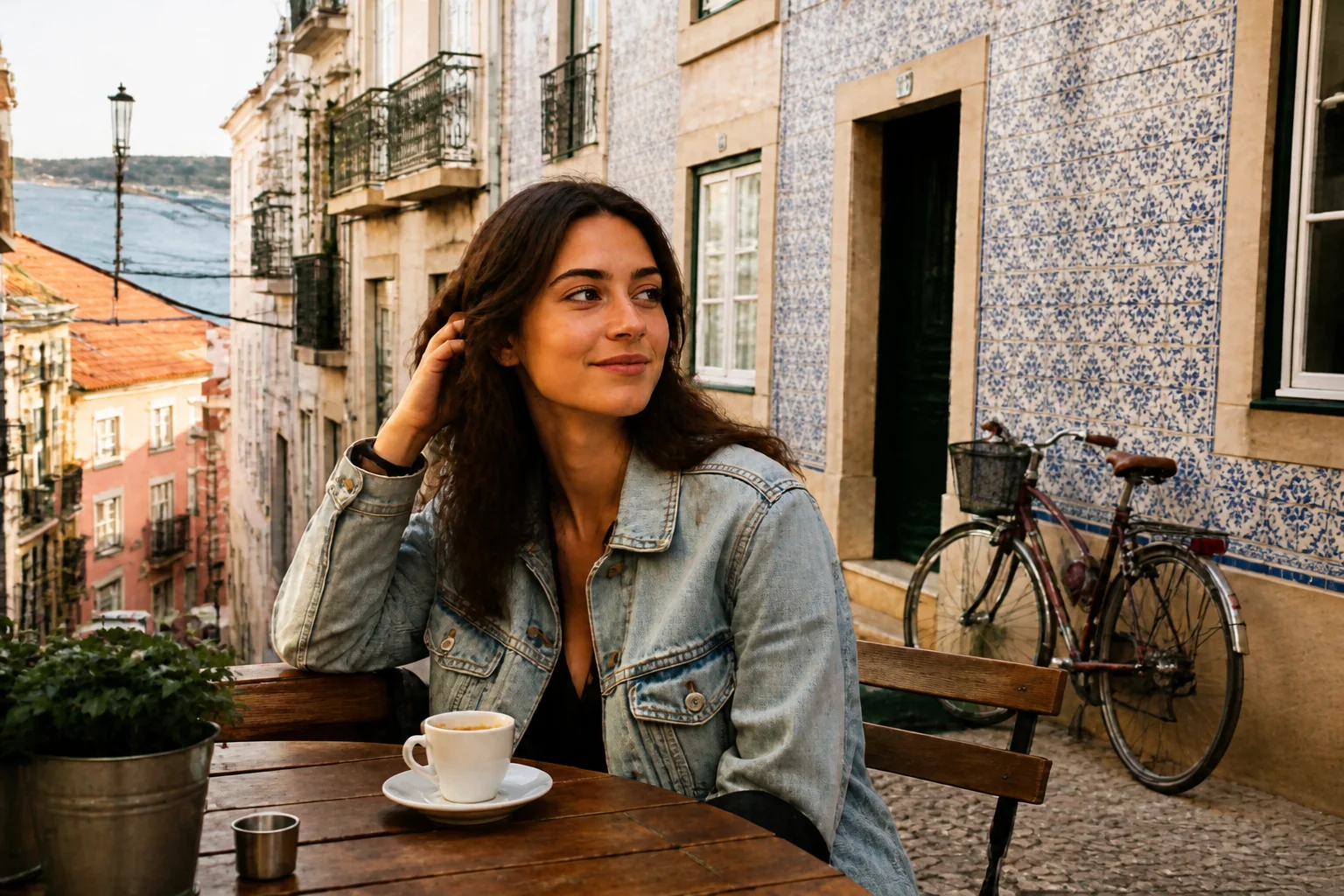
Unblur Image finished result
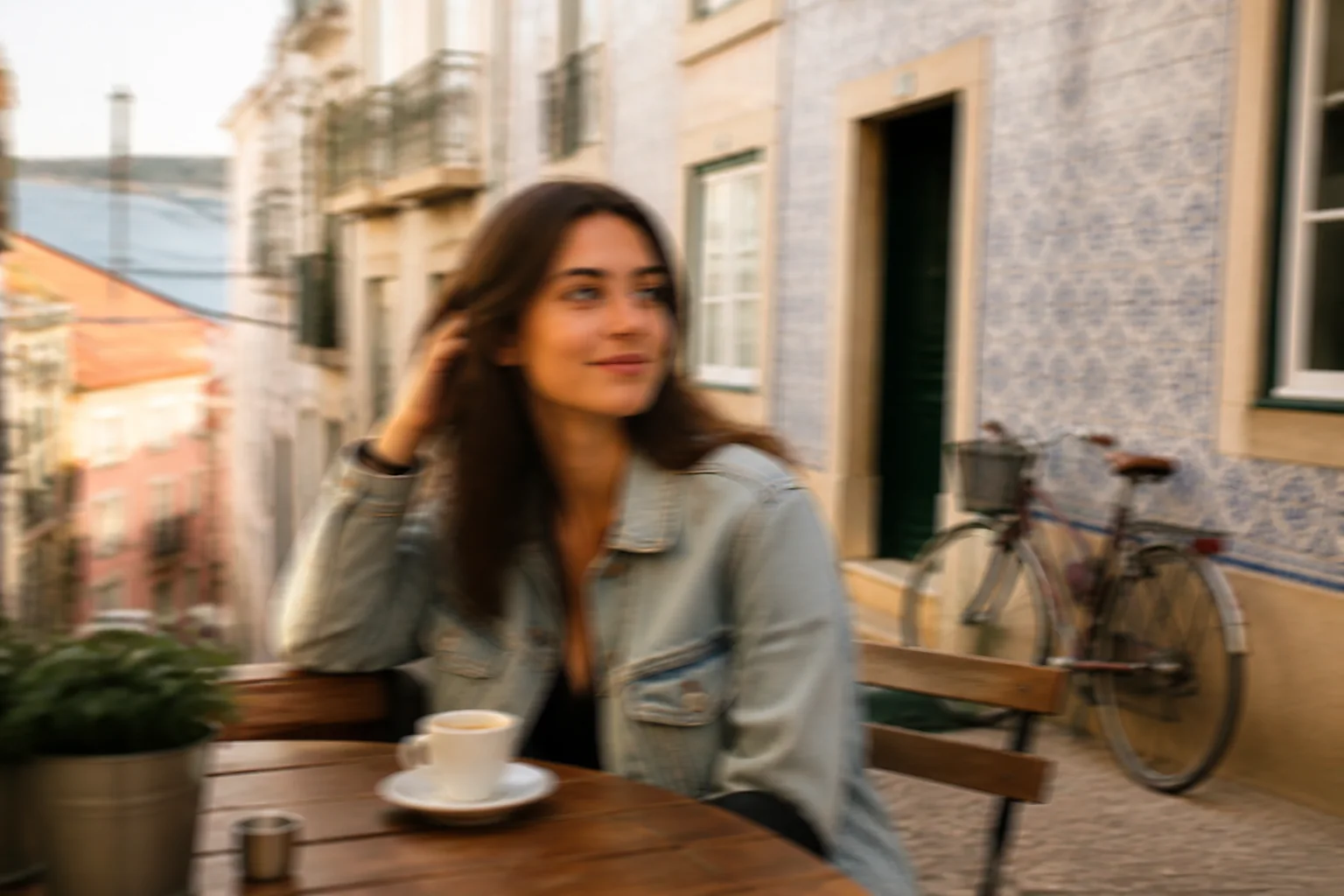
Unblur Image source image before editing
BeforeAfterUse left and right arrow keys to reveal the before and after images.
Drag the divider to inspect the original photo and the clarity-focused result.

More Unblur Image examples

Compare two additional photo types and inspect the visible details that should stay familiar in a clarity-focused edit.

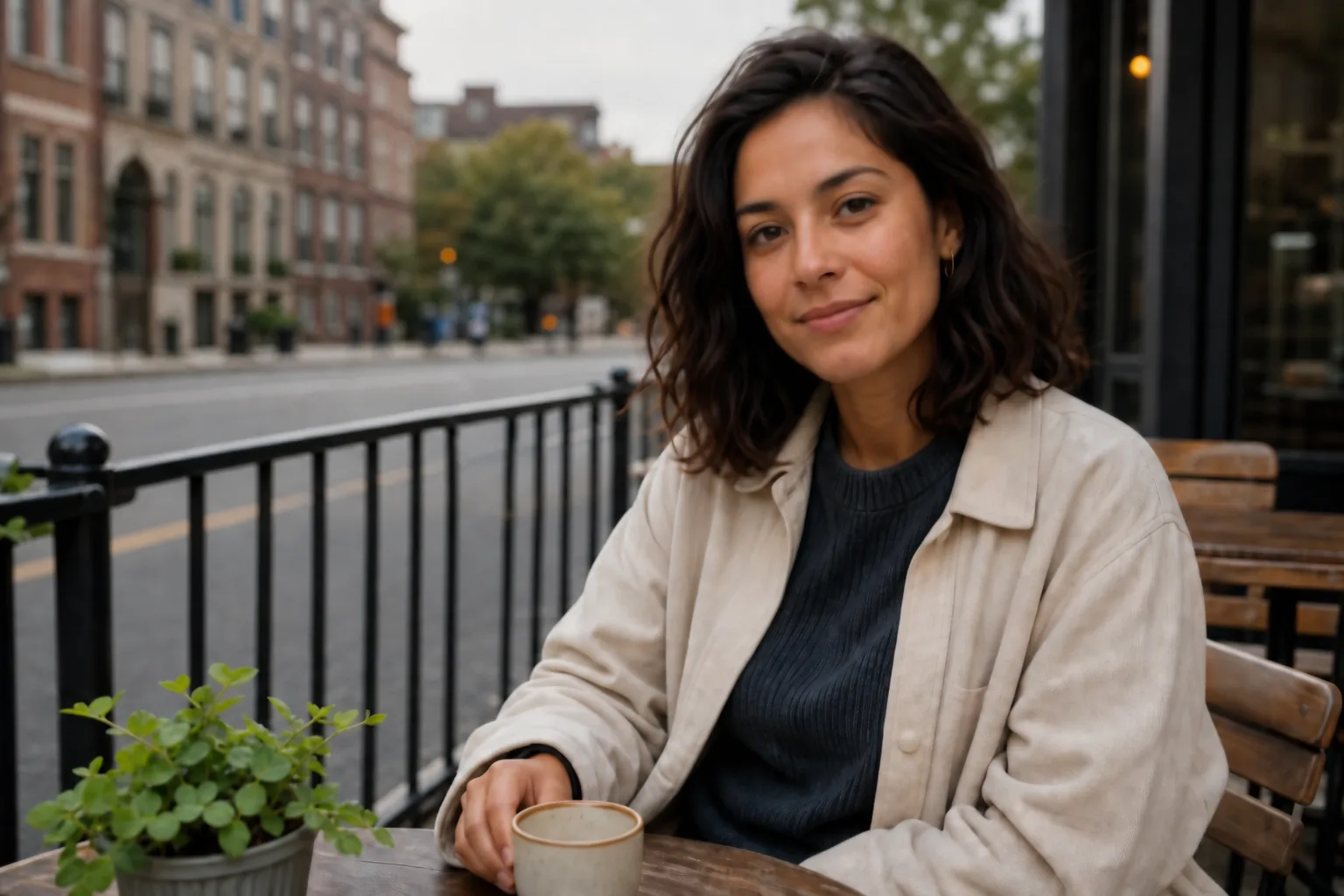
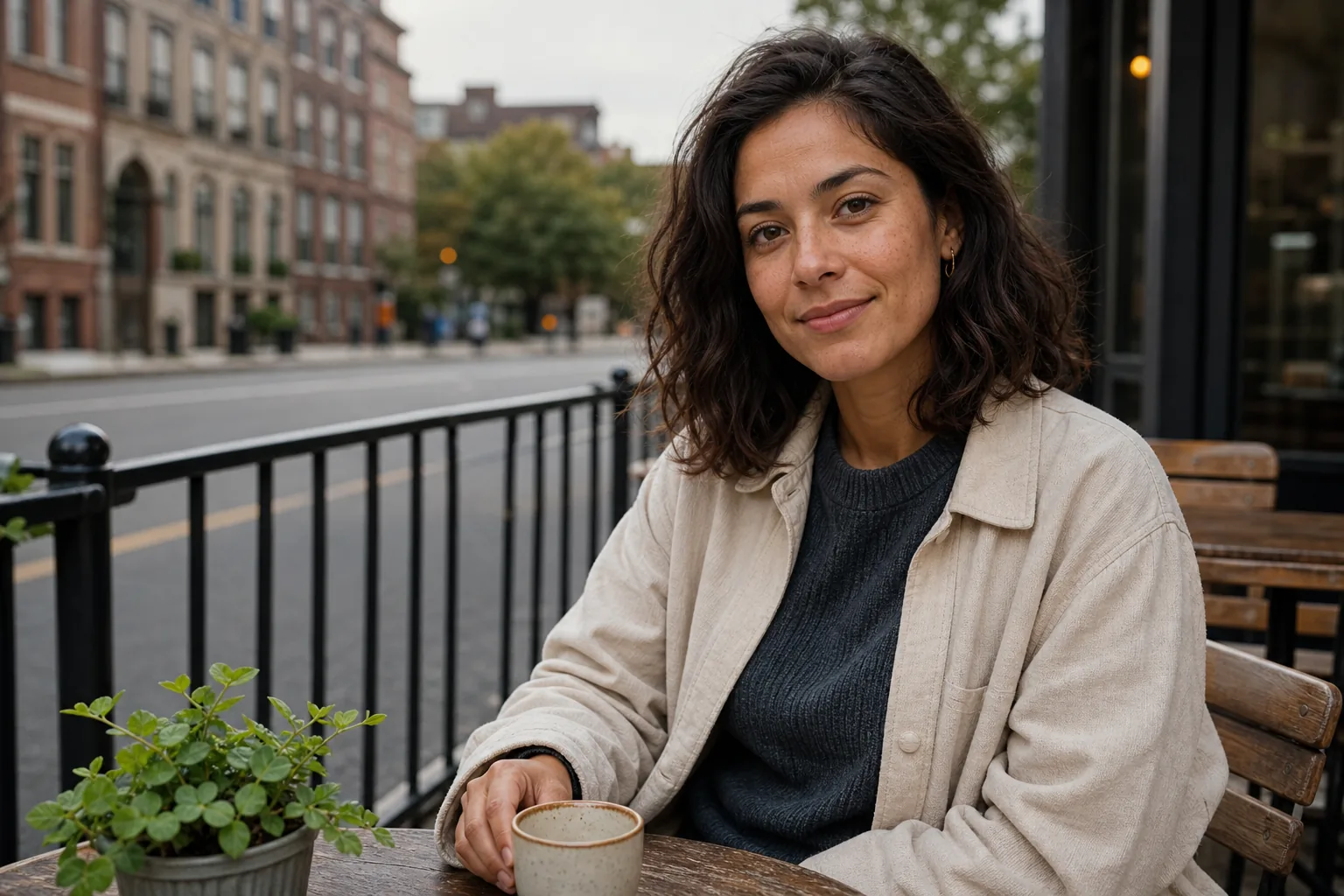
Soft-focus portrait before a clarity-focused image editBefore
Portrait with refined visible detail after a clarity-focused image editAfter

Refine a soft portrait without asking for a new face

GPT Image 2

For a slightly soft portrait, name the expression, hair, and lighting that should remain familiar, then inspect the result around facial features and the outline of the subject.

PortraitExpression reviewNatural texture
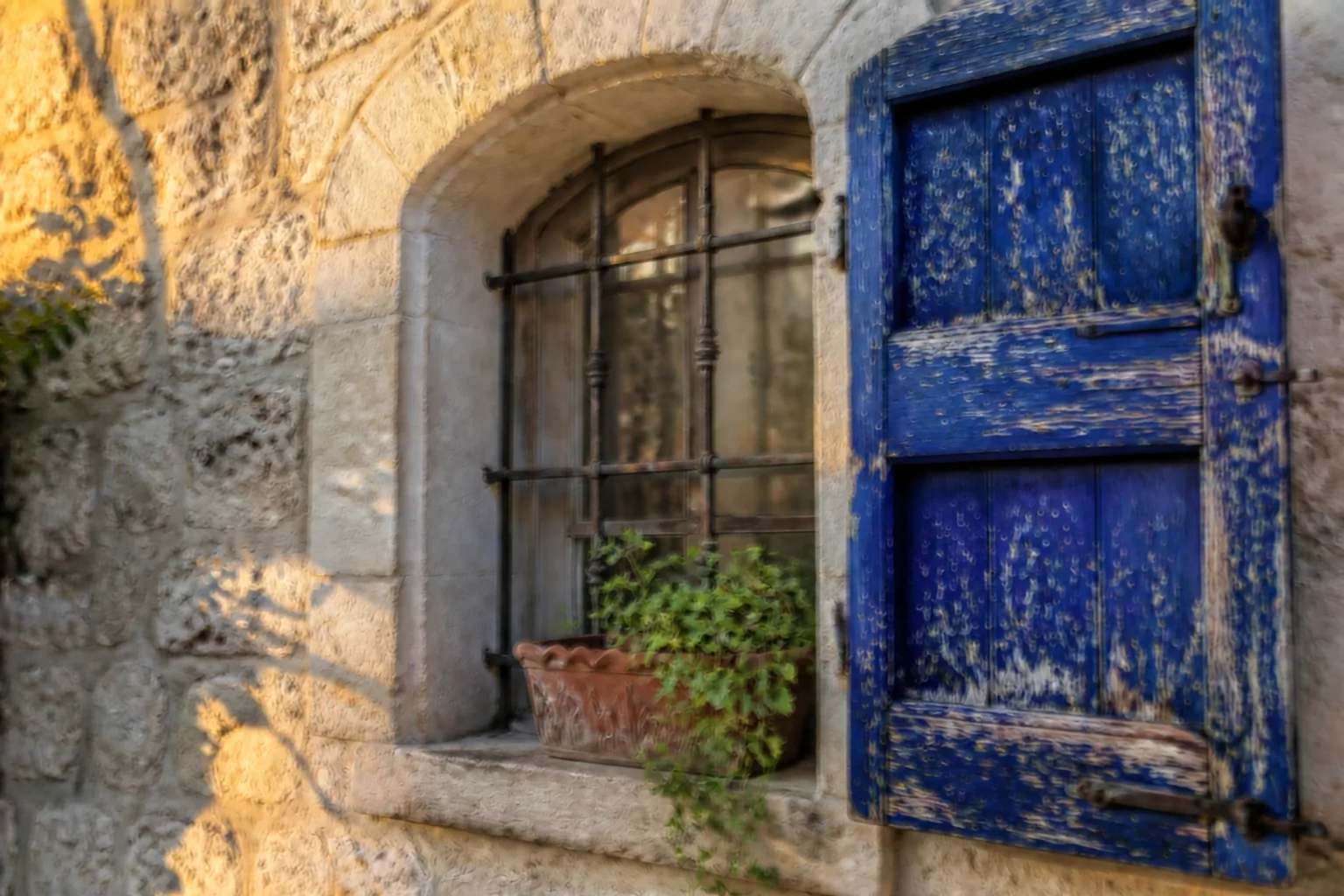
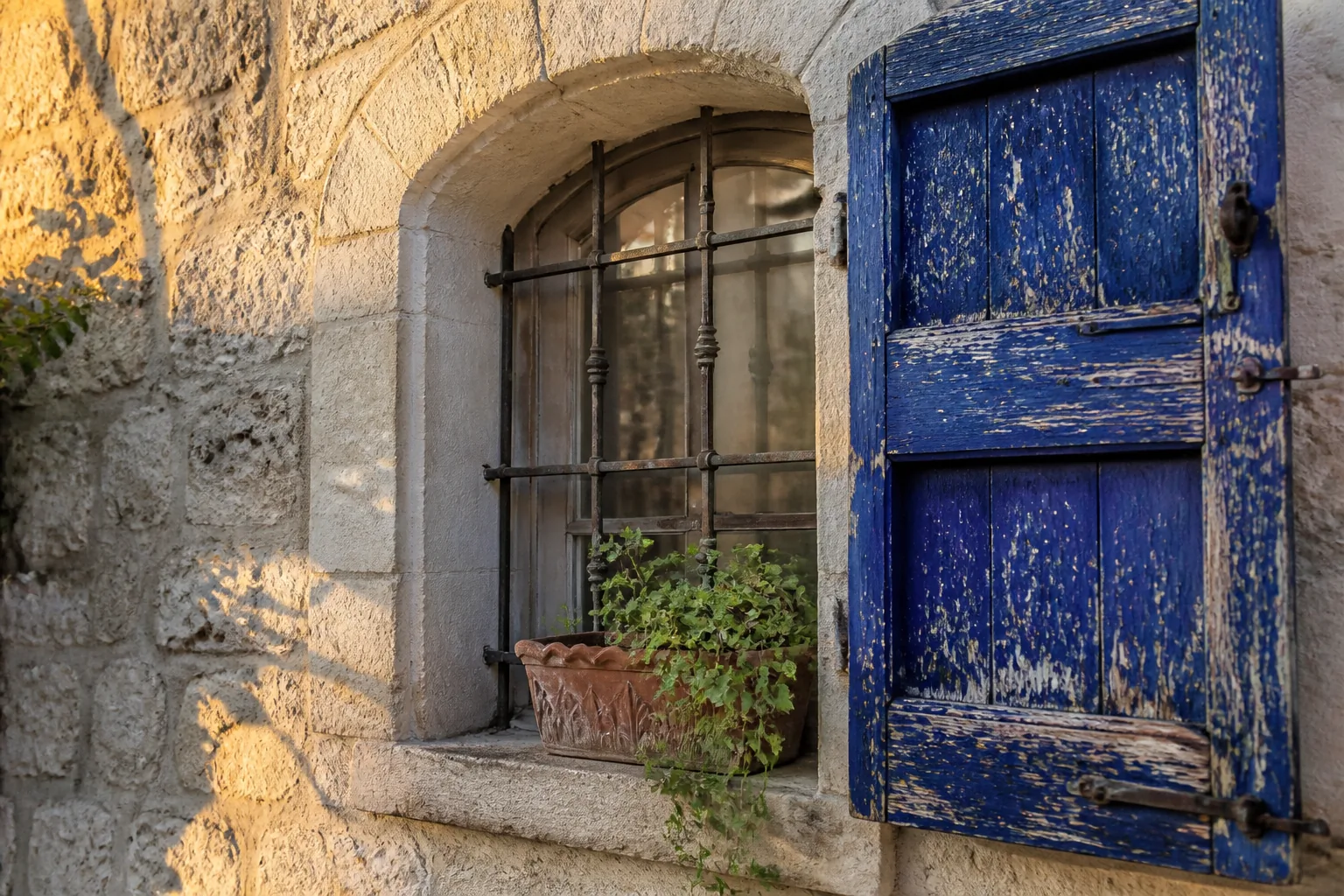
Soft close-up detail with edges and texture before a clarity editBefore
Close-up detail with refined visible edges and texture after a clarity editAfter

Check visible edges and texture before reuse

GPT Image 2

For close detail, ask to retain the visible lines, tiles, and surface texture, then review edge definition and small features before reusing the image.

Fine detailEdge reviewTexture review

How to use Unblur Image

    01
    Upload a photo with visible details
    Choose the PNG, JPG, or WebP source you want to inspect more clearly. The photo can be soft, but the subject, lettering, edge, or texture you care about should still be visible.
    02
    Specify what should stay familiar
    Use a preserve intent for faces, text and edges, or original composition. It writes a real edit instruction that you can change before continuing.
    03
    Review settings, quote, and result in Create
    Continue to Create, review the available settings and exact quote, then inspect faces, lettering, edges, and composition before using the result.

Unblur Image FAQ

A photo can be soft or blurry, but the main subject or detail should still be visible enough to evaluate. Portraits, travel images, products, and everyday moments can be useful candidates for a clarity-focused edit.

Make a blurry photo easier to inspect

Continue to Create, upload your photo, review the available settings and exact quote, then generate a clearer version.