Skip to content
Mixany

AI Photo Restorer

Upload an old photograph, choose the repair level and color treatment, and review the restored result against the original faces, clothing, setting, grain, and period details.

Preserve intent presets
Exact quote in Create
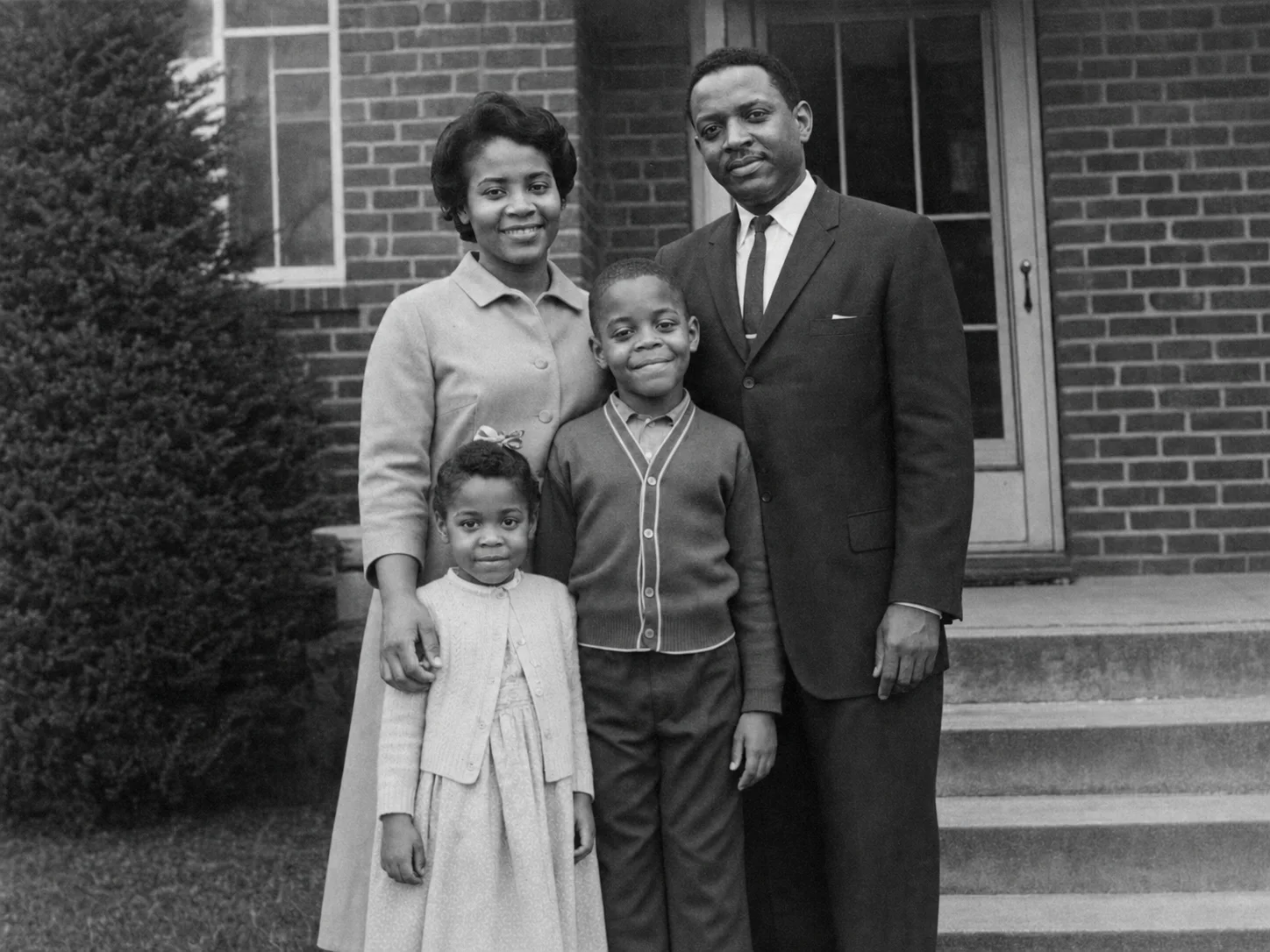
Black-and-white family photograph after scratches and damage are carefully restored
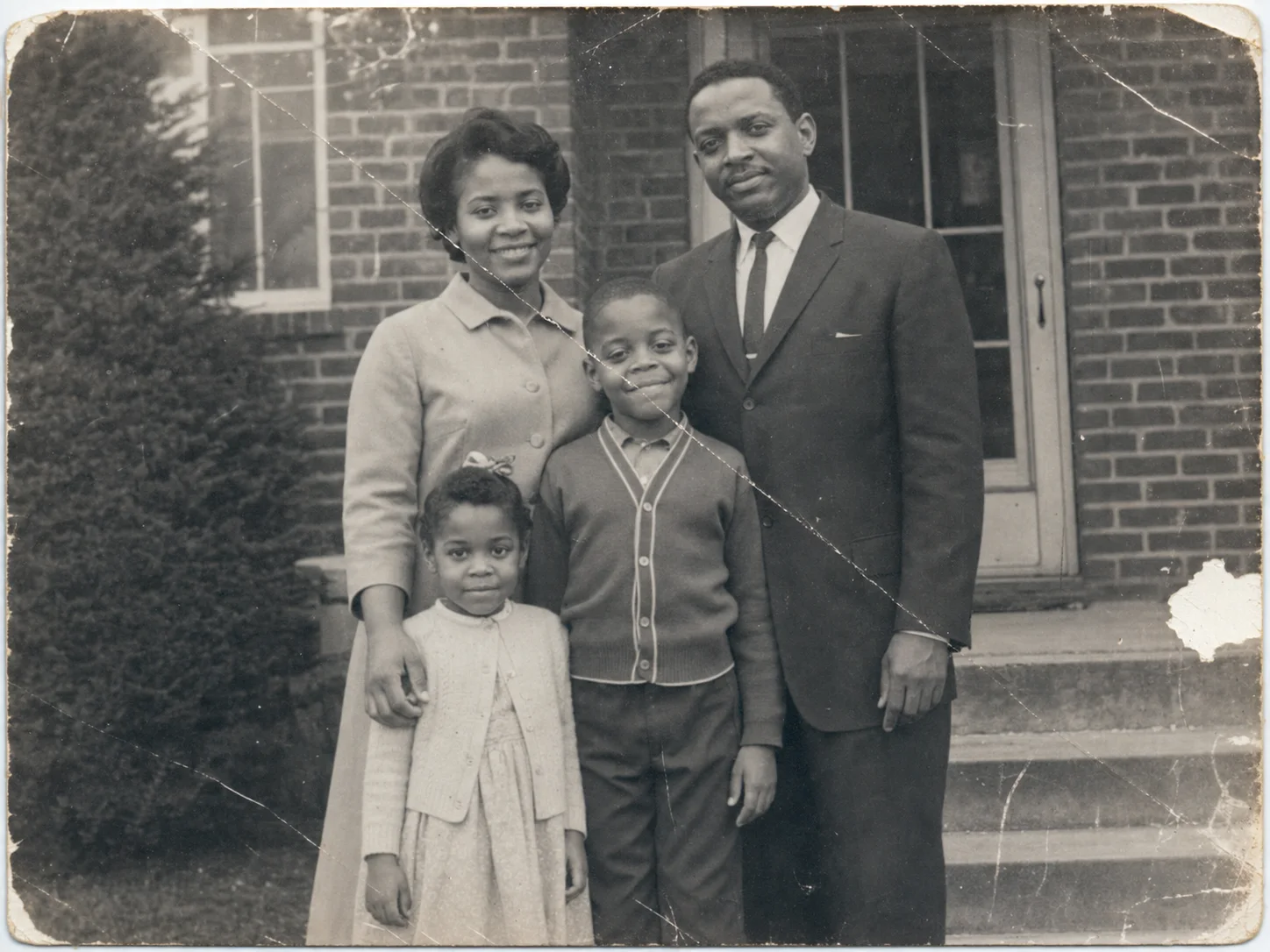
Damaged black-and-white family photograph before AI restoration
DamagedRestoredUse left and right arrow keys to reveal the before and after images.
Drag the divider to compare the damaged family photograph with a careful restoration that preserves the same people and period details.

Inspect real photo-restoration cases

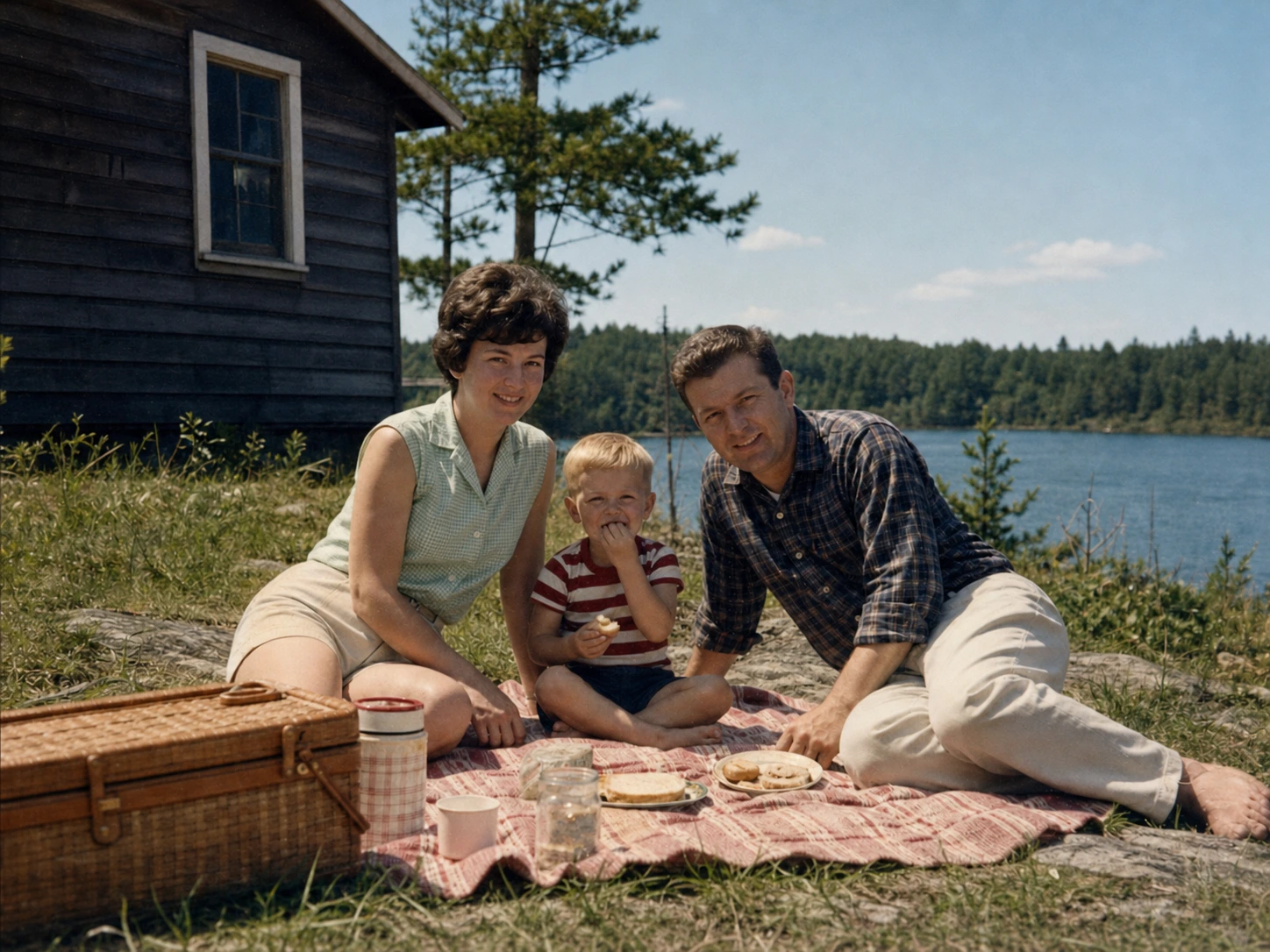
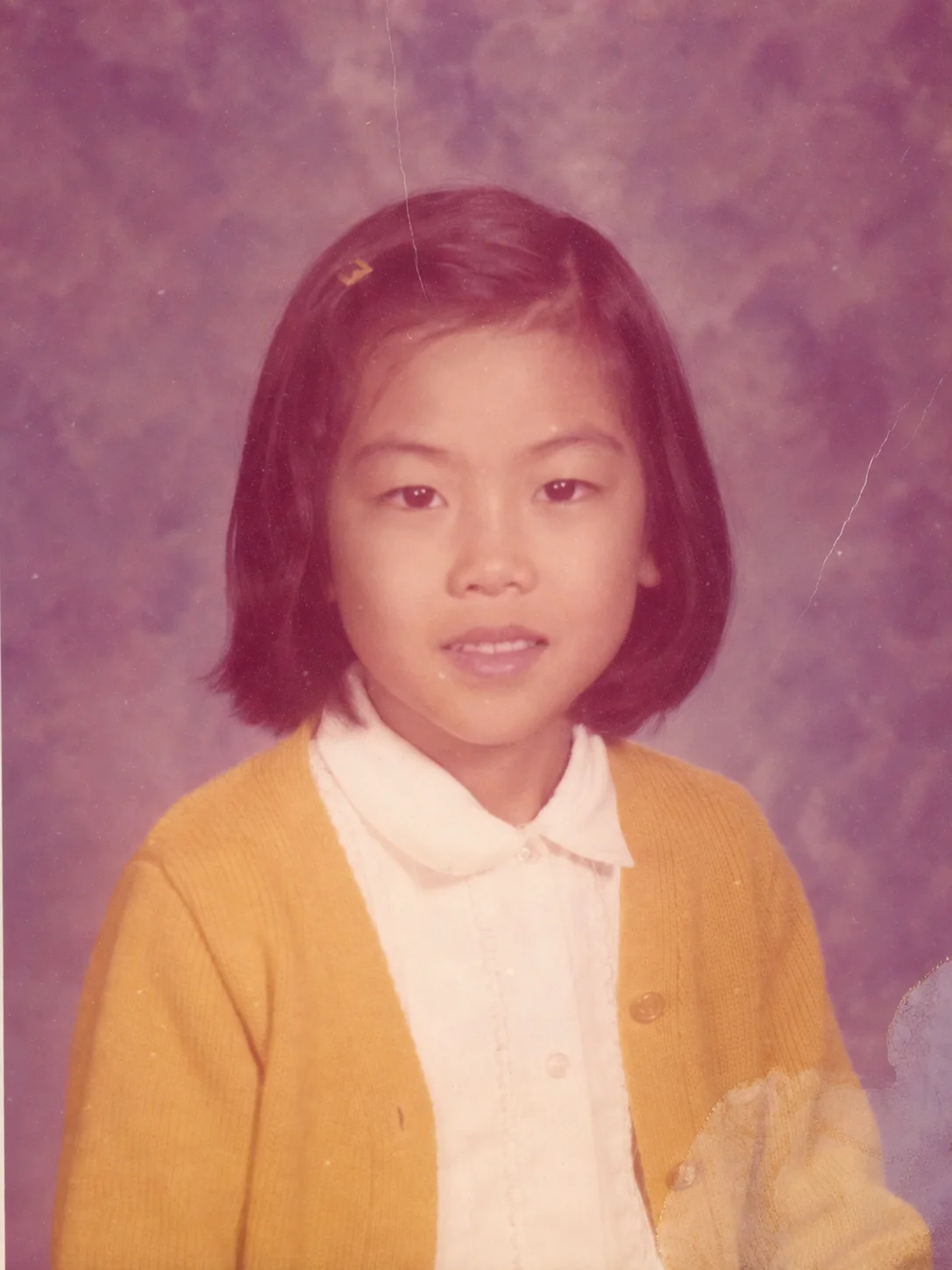
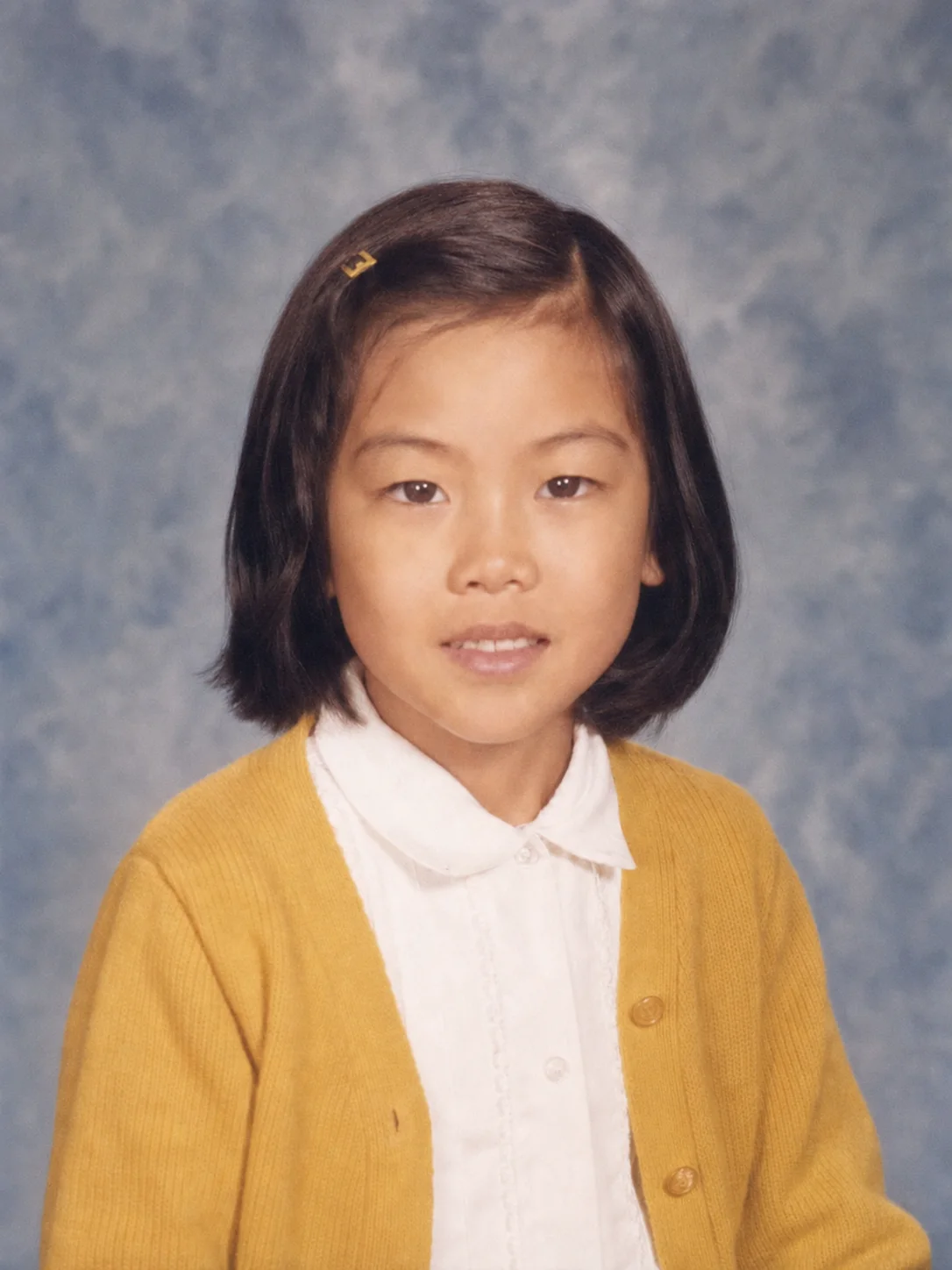
Compare a damaged school portrait and lakeside picnic photograph with their restored results, then inspect identity, clothing, objects, grain, and tonal character.

Damaged black-and-white school portrait before AI restorationBefore
Black-and-white school portrait after careful damage repair and contrast restorationAfter

Recover contrast while keeping the portrait historical

GPT Image 2

Compare the face, expression, hair, clothing, paper texture, and crop with the damaged source, and keep monochrome photographs black and white when that is the chosen treatment.

School portraitBlack and whitePeriod detail
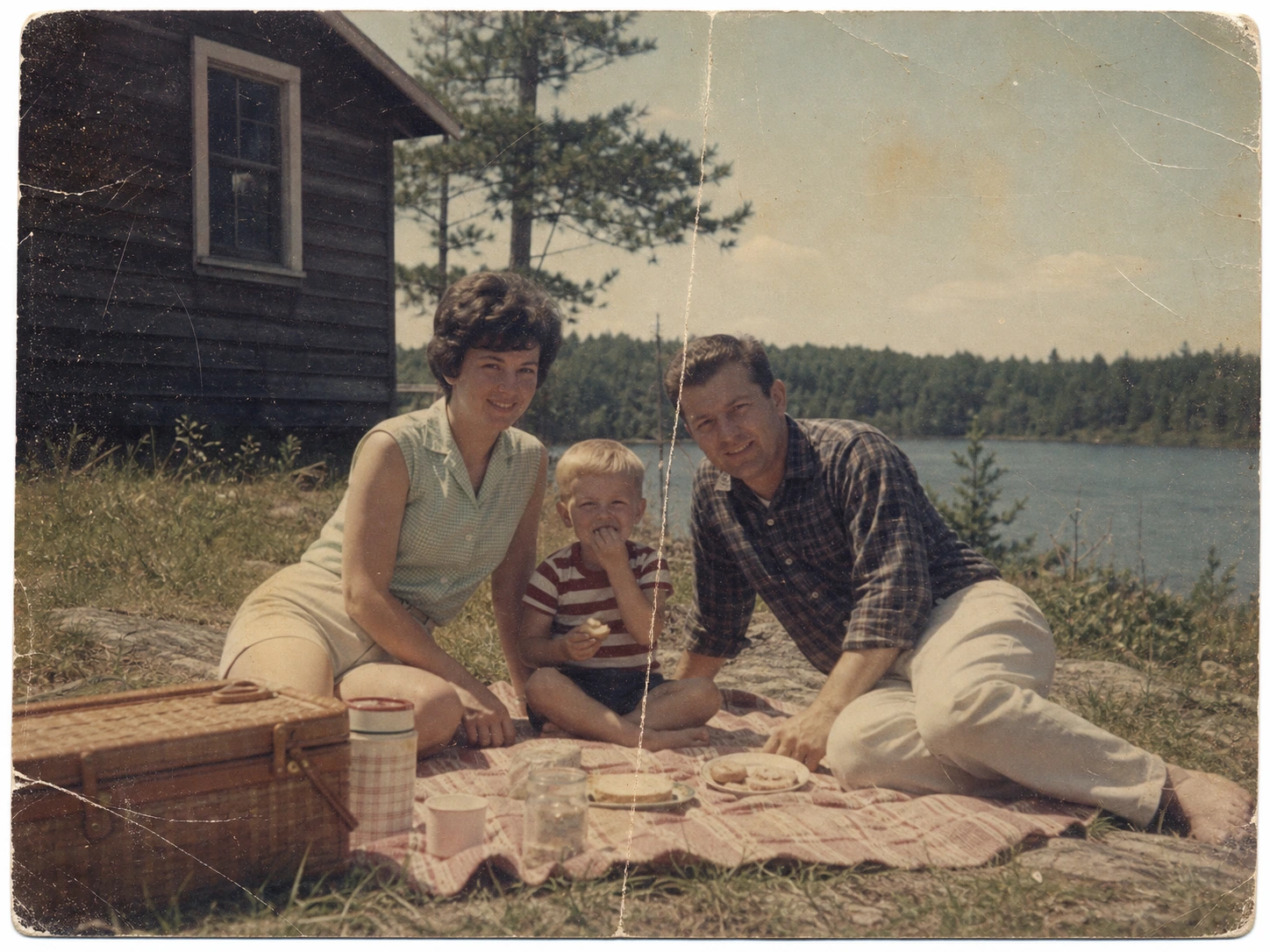
Faded and damaged lakeside picnic photograph before AI restorationBefore
Lakeside picnic photograph after careful damage repair and color restorationAfter

Repair a faded lakeside picnic photograph without erasing its character

GPT Image 2

Check faces, clothing, hands, picnic objects, color, grain, and the original crop after scratches, fading, and surface damage are repaired.

Lakeside photoColor restorationIdentity review

How to restore an old photo with AI

    01
    Upload the best complete scan
    Choose a flat, evenly lit PNG, JPG, or WebP scan or photograph with the full print visible and minimal glare or obstruction.
    02
    Choose repair level and color treatment
    Use Gentle, Balanced, or Strong for the visible damage, then explicitly keep the original color, restore faded existing color, or keep black and white.
    03
    Compare people and period details in Create
    Review the settings and exact quote, then inspect faces, expressions, hands, clothes, objects, crop, grain, and historical character before using the result.

AI Photo Restorer FAQ

Choose the repair level that matches the visible damage. Stronger repair can address heavier wear, but completely missing information cannot be recovered with archival certainty.

Restore an old photograph carefully

Continue to Create, upload the best scan available, choose repair and color settings, and compare people and period details before generating.