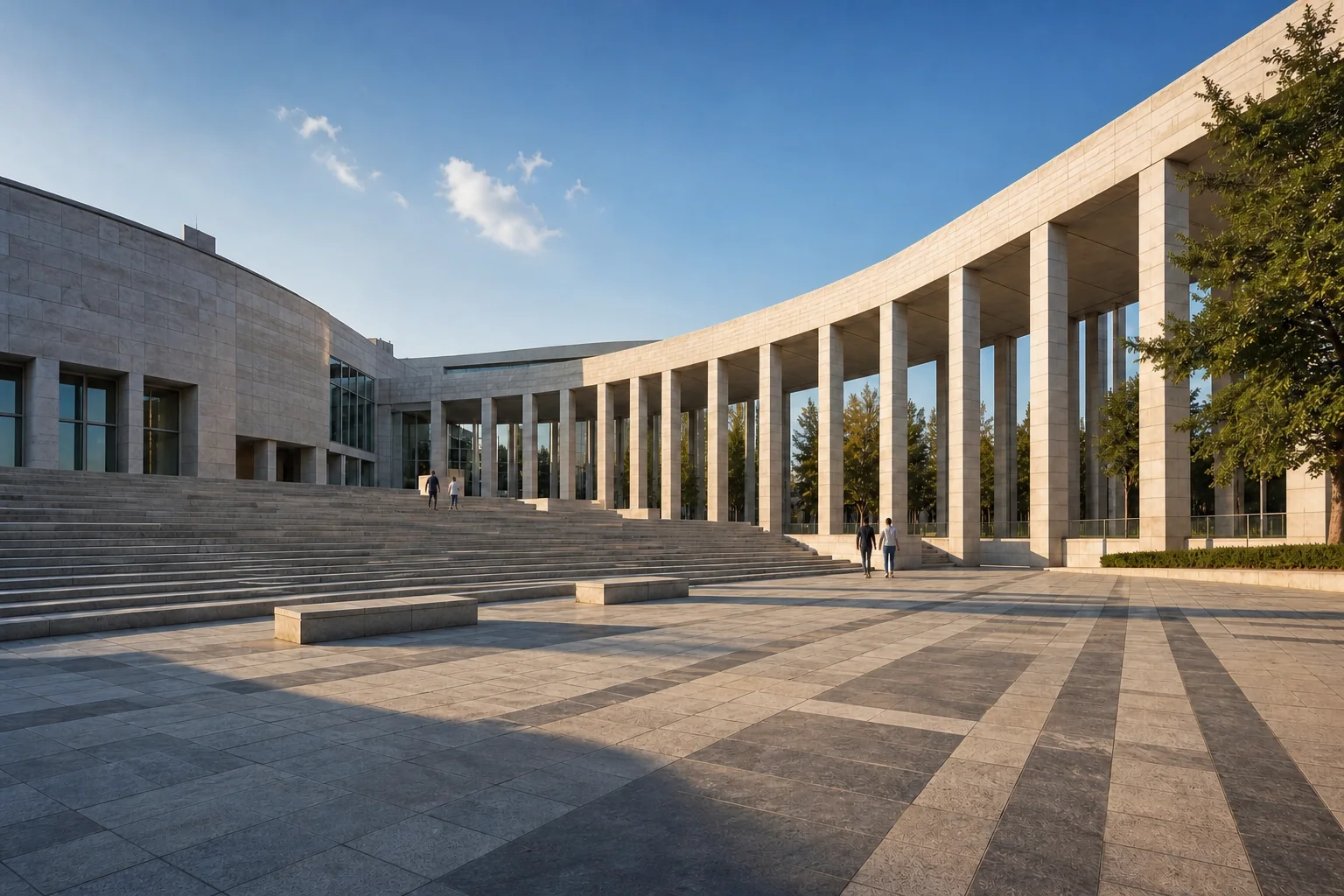
 Before
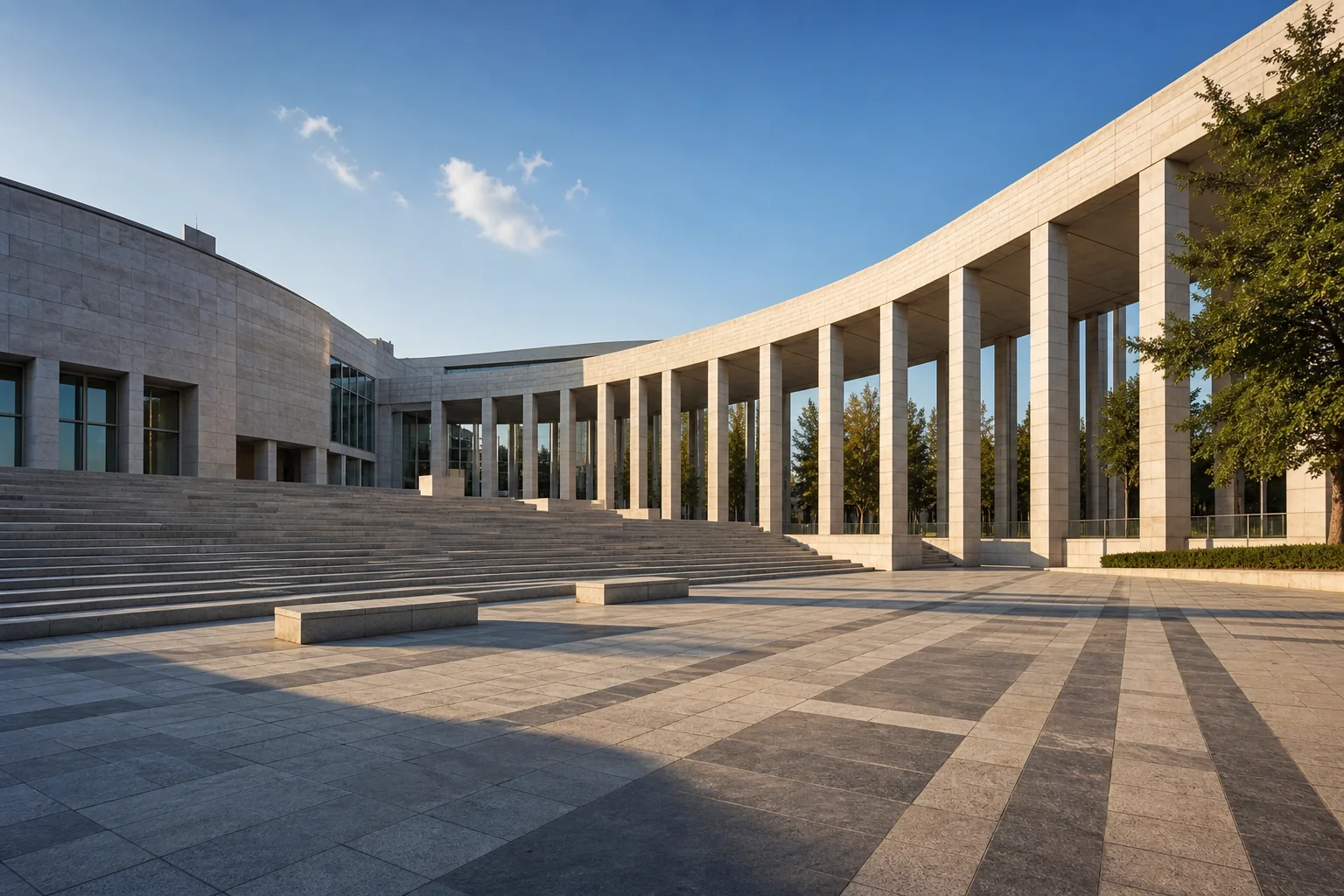 After
AfterClear the view around a landmark
GPT Image 2
When people interrupt a destination photo, inspect the rebuilt ground, architecture, shadows, and perspective around the cleared space.
LandmarkPerspectiveScene review
Upload a travel or street photo, identify the people you want to remove, and create a cleaner scene while preserving the landmark, architecture, framing, light, and atmosphere.


See two travel-photo cases and inspect the landmark, scenery, and intended subject that should remain the focus.
BeforeAfterGPT Image 2
When people interrupt a destination photo, inspect the rebuilt ground, architecture, shadows, and perspective around the cleared space.
 Before
 After
AfterGPT Image 2
For a travel portrait, state which person should remain, then inspect the background and edges around the person after unwanted pedestrians are removed.
Open the tool that matches the file or result you need.
Remove a distracting sign, bag, vehicle, or object after cleaning unwanted people from the scene.
ExploreClean ordinary captions or dates from an image and rebuild the surrounding background.
ExploreTurn a cleaned travel image into a watercolor-style souvenir or framed artwork.
ExploreContinue to Create, upload the travel or street image, identify the people to remove, and inspect the rebuilt scene before generating.